 CLFSWM
CLFSWM is a 100% Common Lisp X11 window manager (based on
Tinywm and
Stumpwm.
Many thanks to them).
It can be driven only with the keyboard or with the mouse.
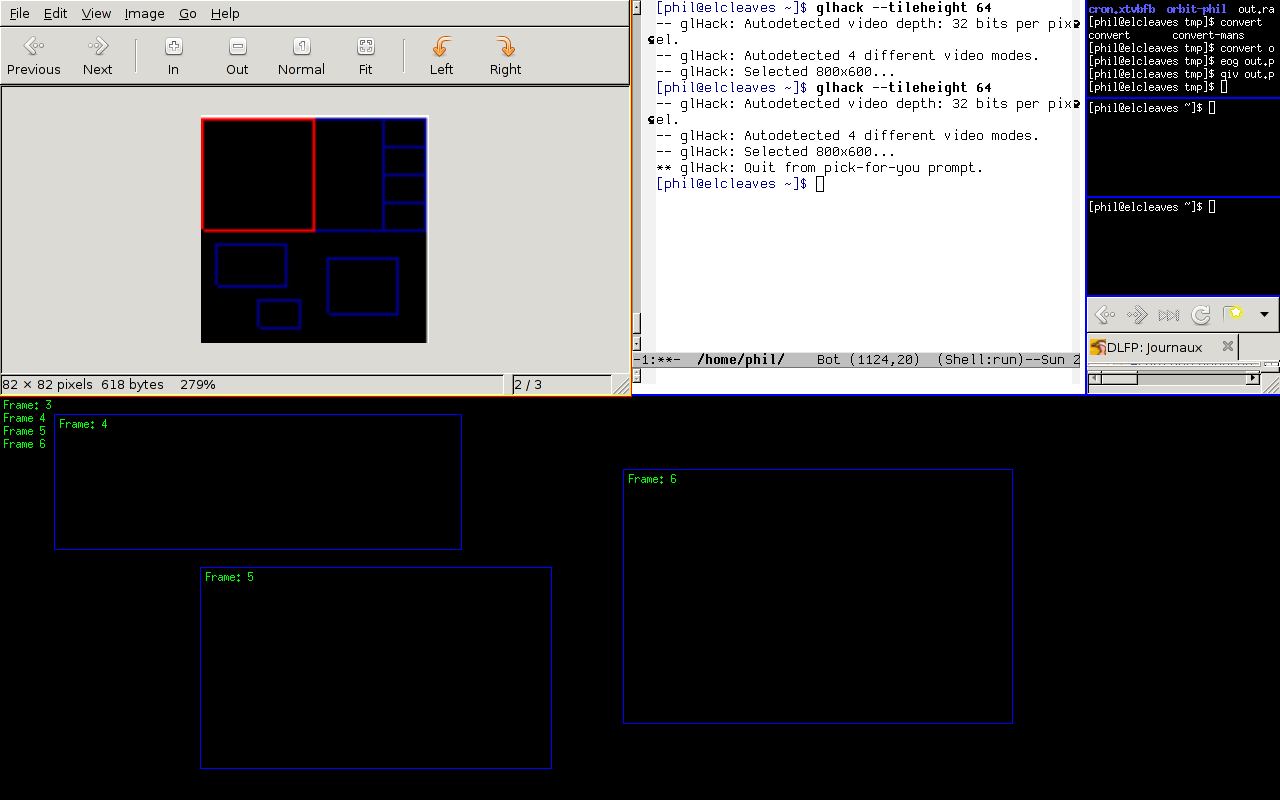
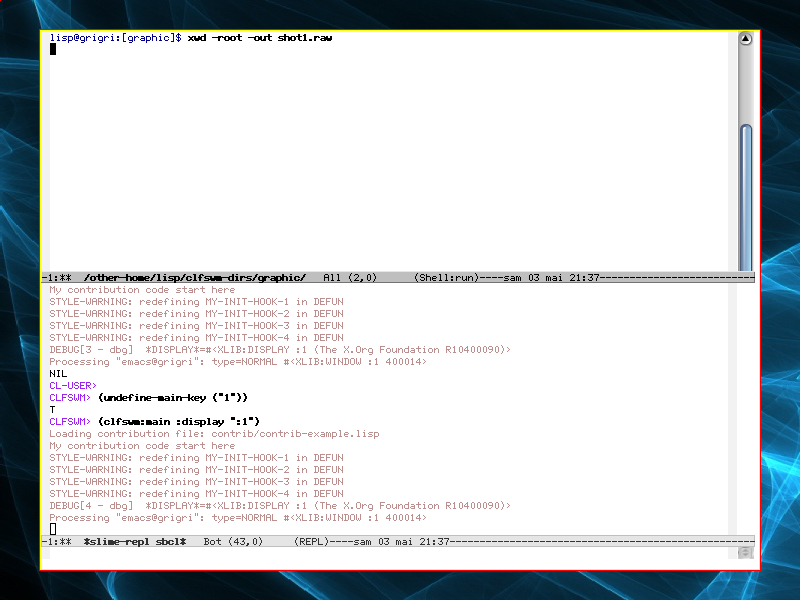
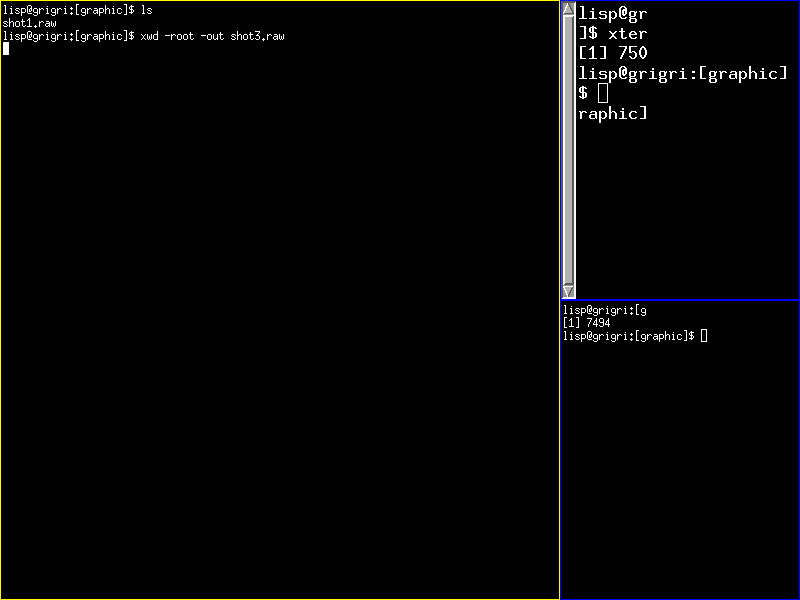
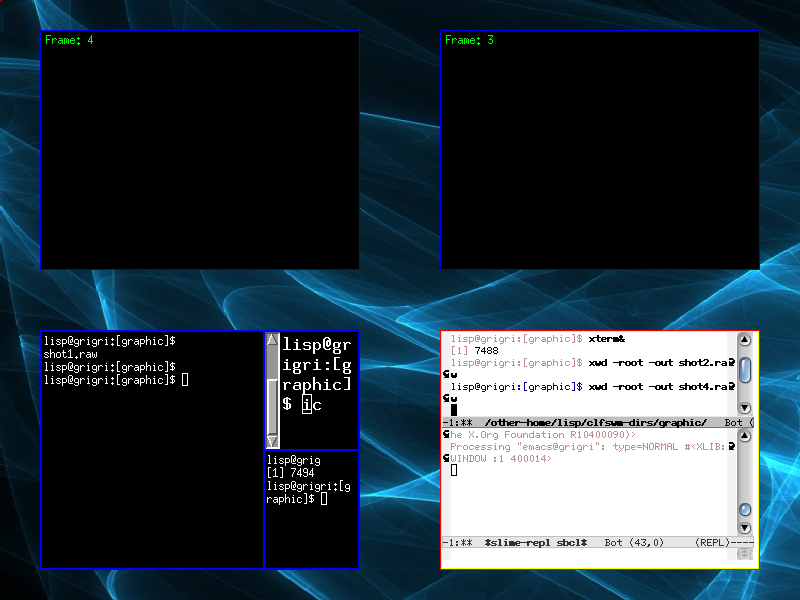
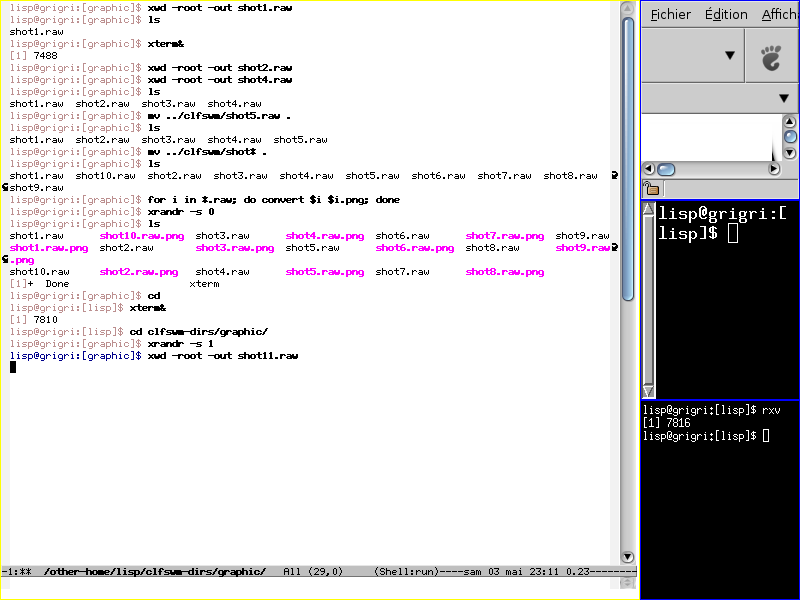
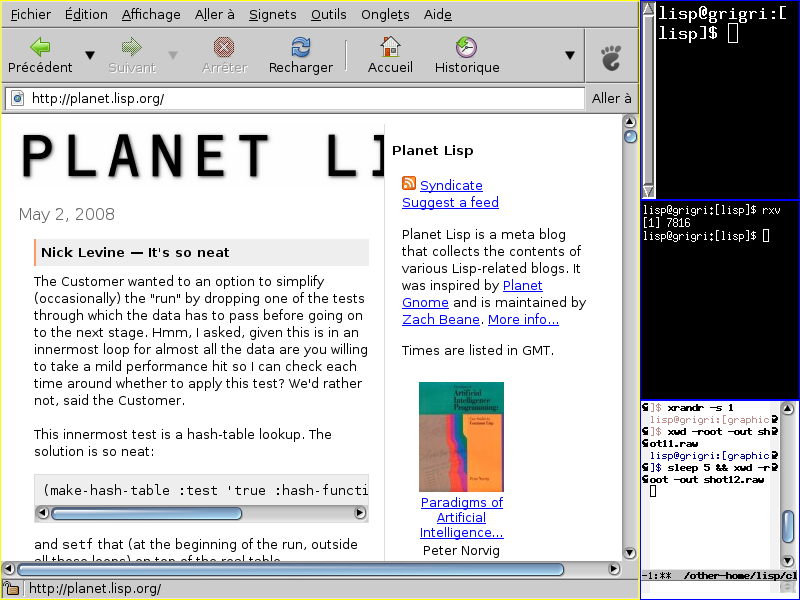
A display contains a root frame and its children. A child can be a window or another frame. The root frame or its children can be the current root. The current root is fullscreen maximized (no decorations, no buttons, no menus: nothing, just the application fullscreen!).
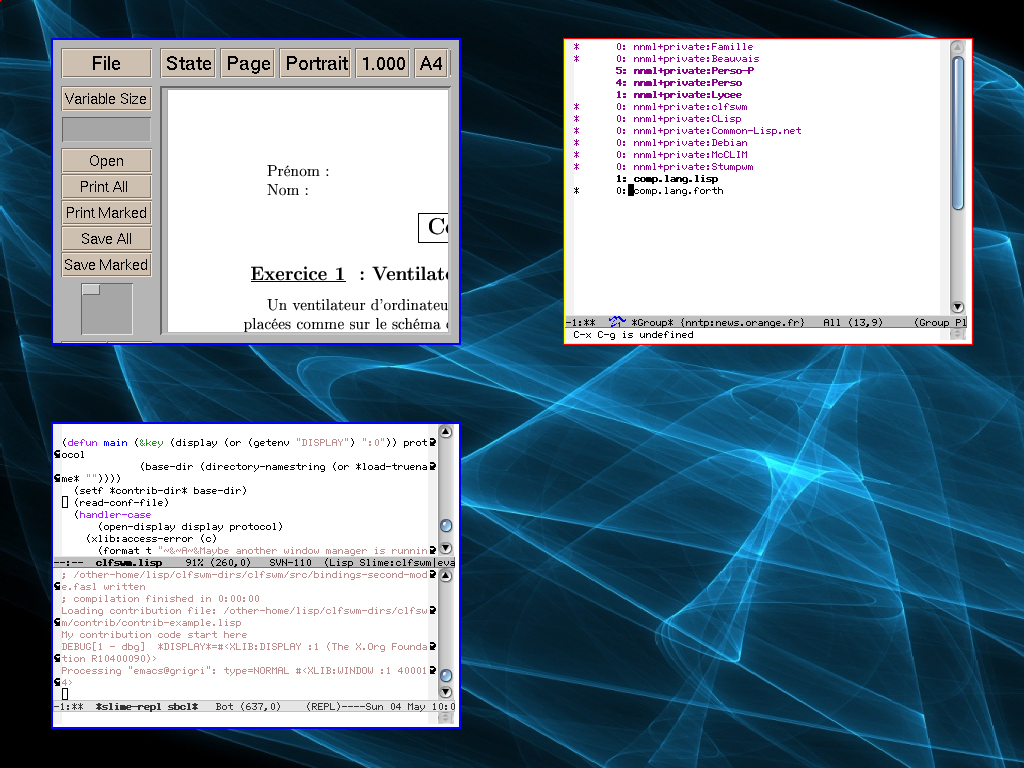
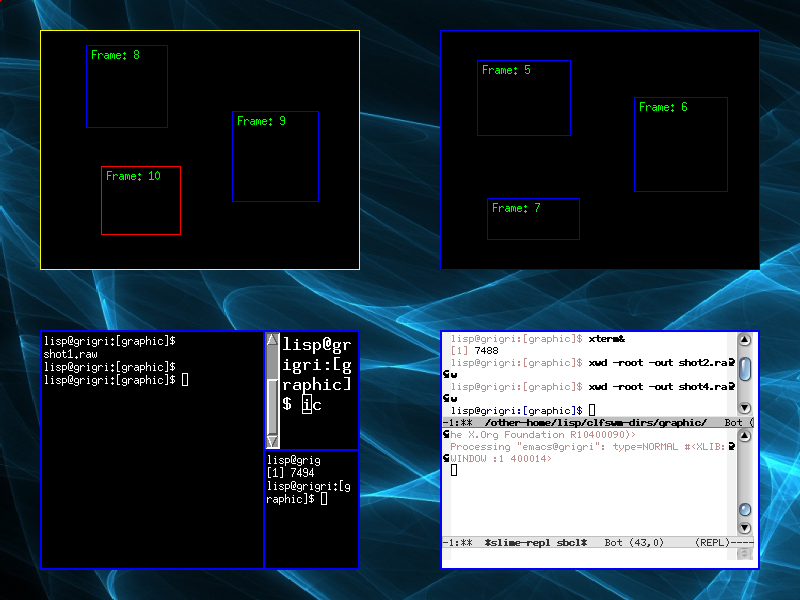
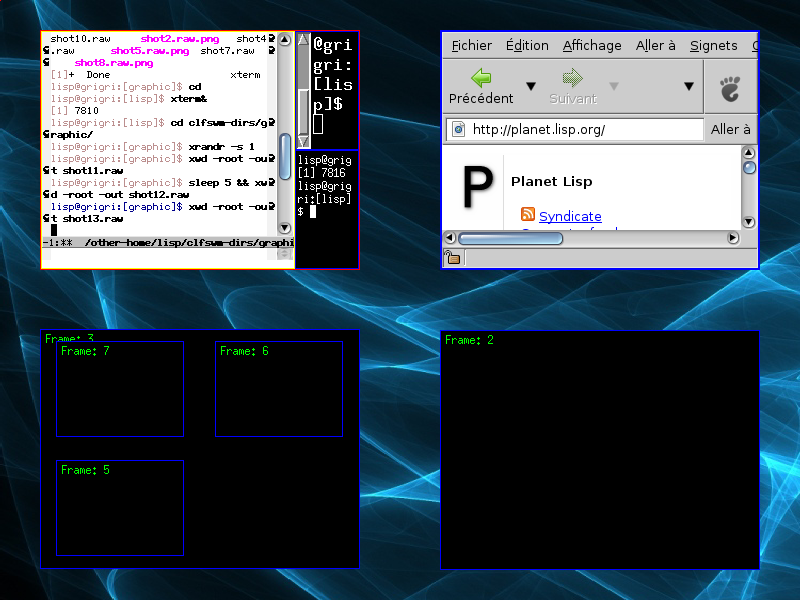
CLFSWM is highly dynamic. By default there is only one frame (the root frame). Other frames are created/deleted on the fly. A window can be in more than one frame, so it can have multiple views of the same windows.
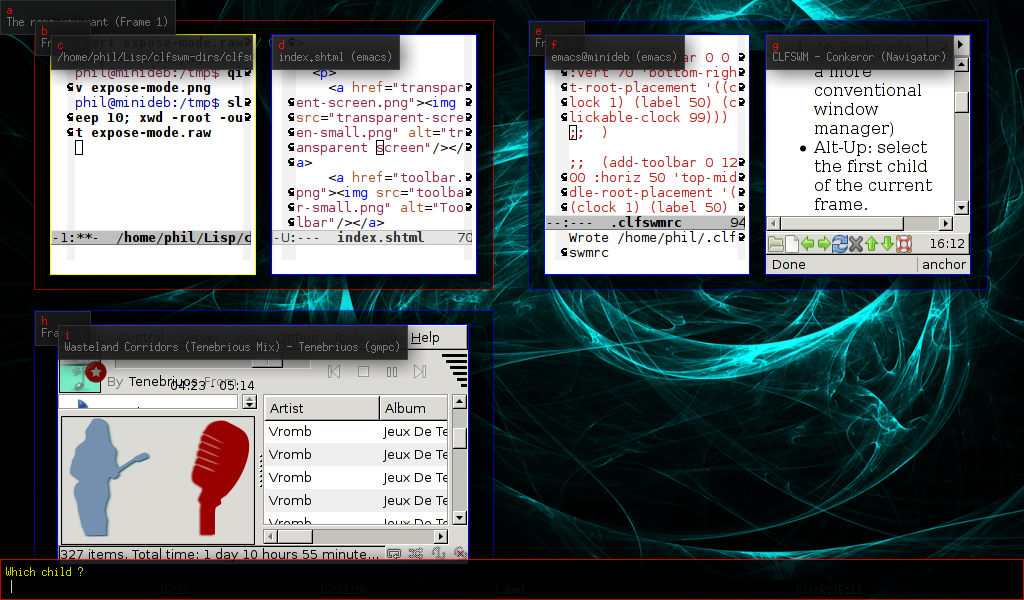
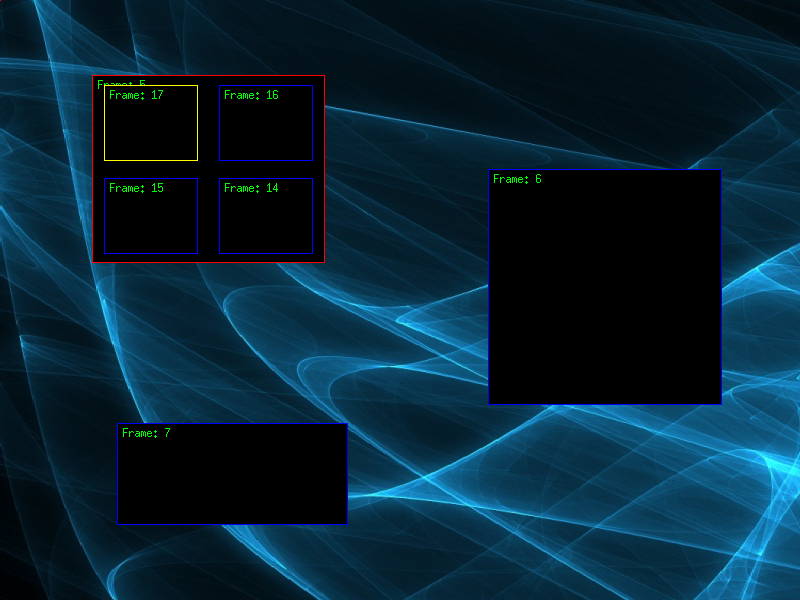
Using CLFSWM is like walking through a tree of frames and windows. Enter in a child to make it the current root and make it fullscreen maximized. Leave it to make its parent the current root.
Here is the default key binding to navigate through this tree:
So, there is no more need for a pager: you are in the pager!
See this explanations or the tutorial below to have an overview of the CLFSWM mechanism. You can also find more information on the CLFSWM wiki.
For its binding, CLFSWM has two modes: A main mode with minimal keys and mouse grabbing to avoid conflicts with others applications. And a second mode with more keys and mouse actions. For details of its usage, have a look at the files doc/keys.txt or doc/keys.html.
A lot of functions to manage CLFSWM can be found in the second mode menu. See the files doc/menu.txt or doc/menu.html for an overview.
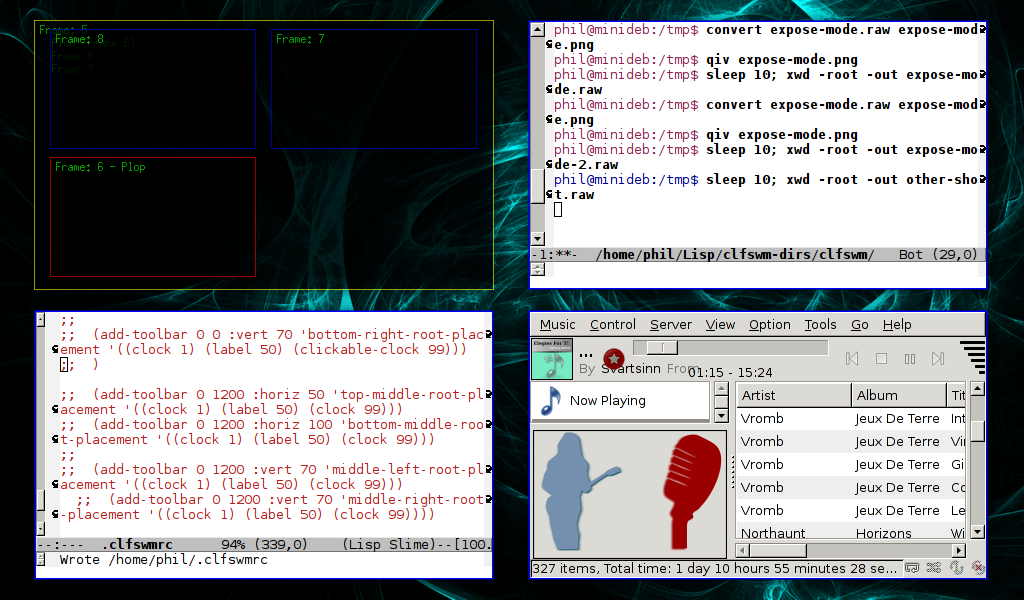
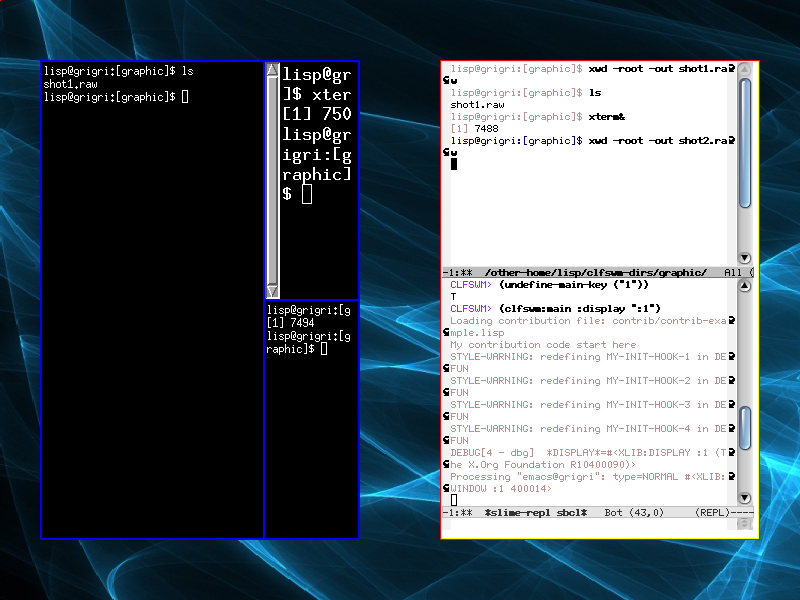
A frame can be placed anywhere in its parent frame. And can have different layouts to automatically manage its children (tile, tile to left, to bottom, no layout...).
Some actions can be performed by clicking on screen corners. For example a left click on the bottom right corner give you an OS X Exposé like. A left click on the top right corner show/hide a virtual keyboard . And a right click on the top left corner show/hide a terminal (like a quake console)... See doc/corner.txt or doc/corner.html for a summary.
CLFSWM can be configured from the built-in Lisp evaluator or with the configuration menu. Here are the tweakable variables : doc/variables.txt or doc/variables.html.
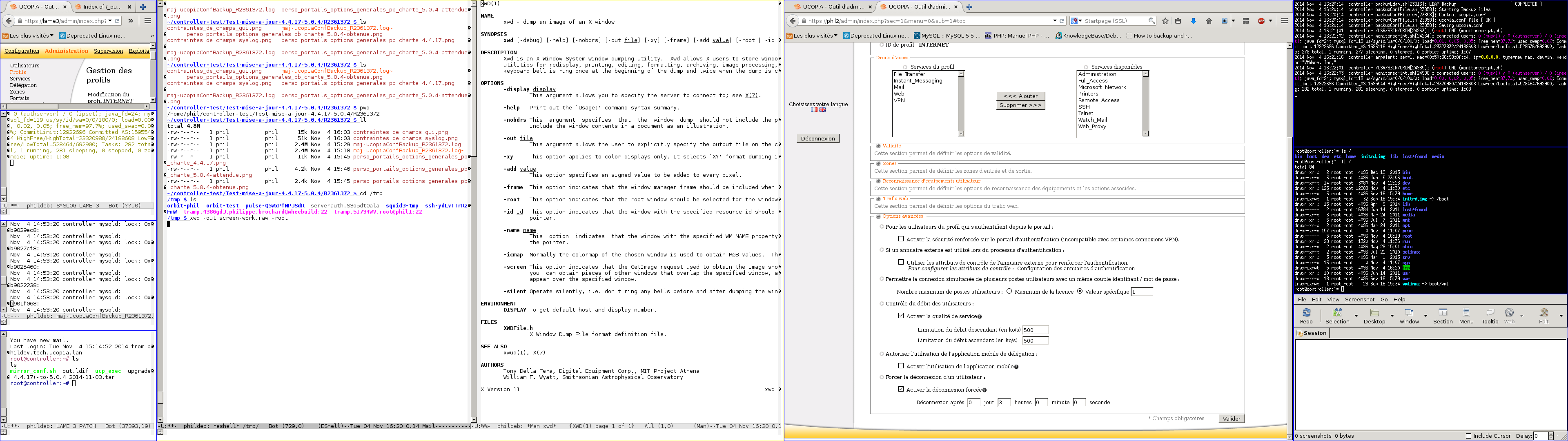
| Working screen: |
|
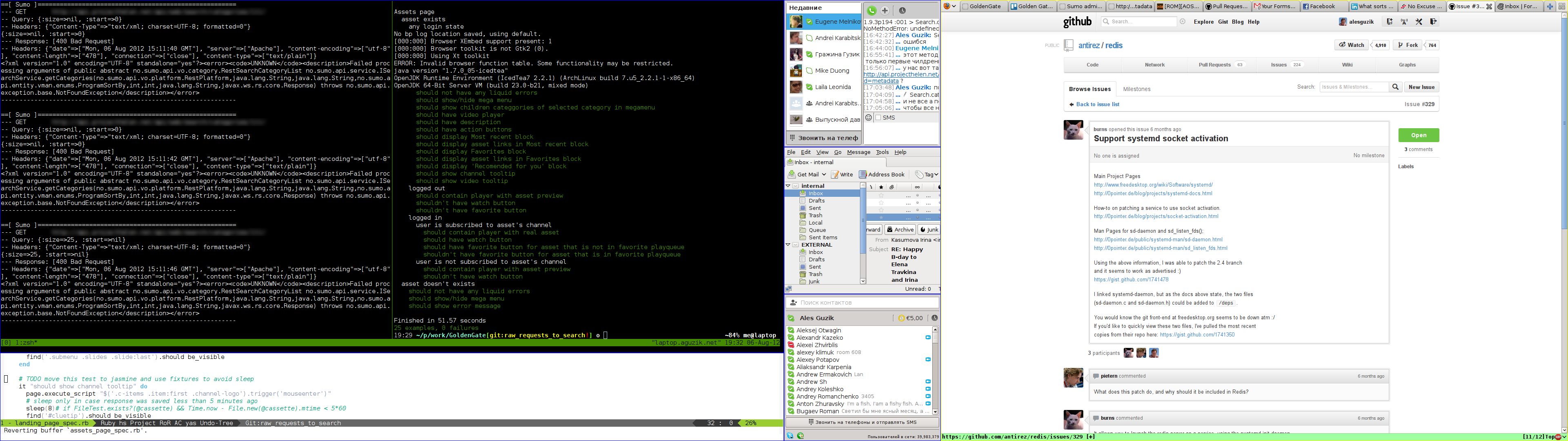
| Dual screen setup: |
|




CLFSWM is under the GNU General Public License - GPL license.
You can find more information in the files
COPYING.
or on the Free Software Foundation
site.
You can follow the CLFSWM development and find more documentation or tips on the CLFSWM GitLab.
You can browse our git repository or clone it if desired.
There is also another GIT repository at repo.or.cz synchronized with the common-lisp.net GIT repository.